

Viewport & Comparison Tools
← Timeline & tracks · User Guide · Next: Prompting guide →The viewport is the central preview area. It plays video, displays comparison views, and exposes frame-level tools. It also includes the Settings Panel and Render Info tabs on the left — see the dedicated section below.
View modes
A row of buttons at the top of the viewport switches view configurations:
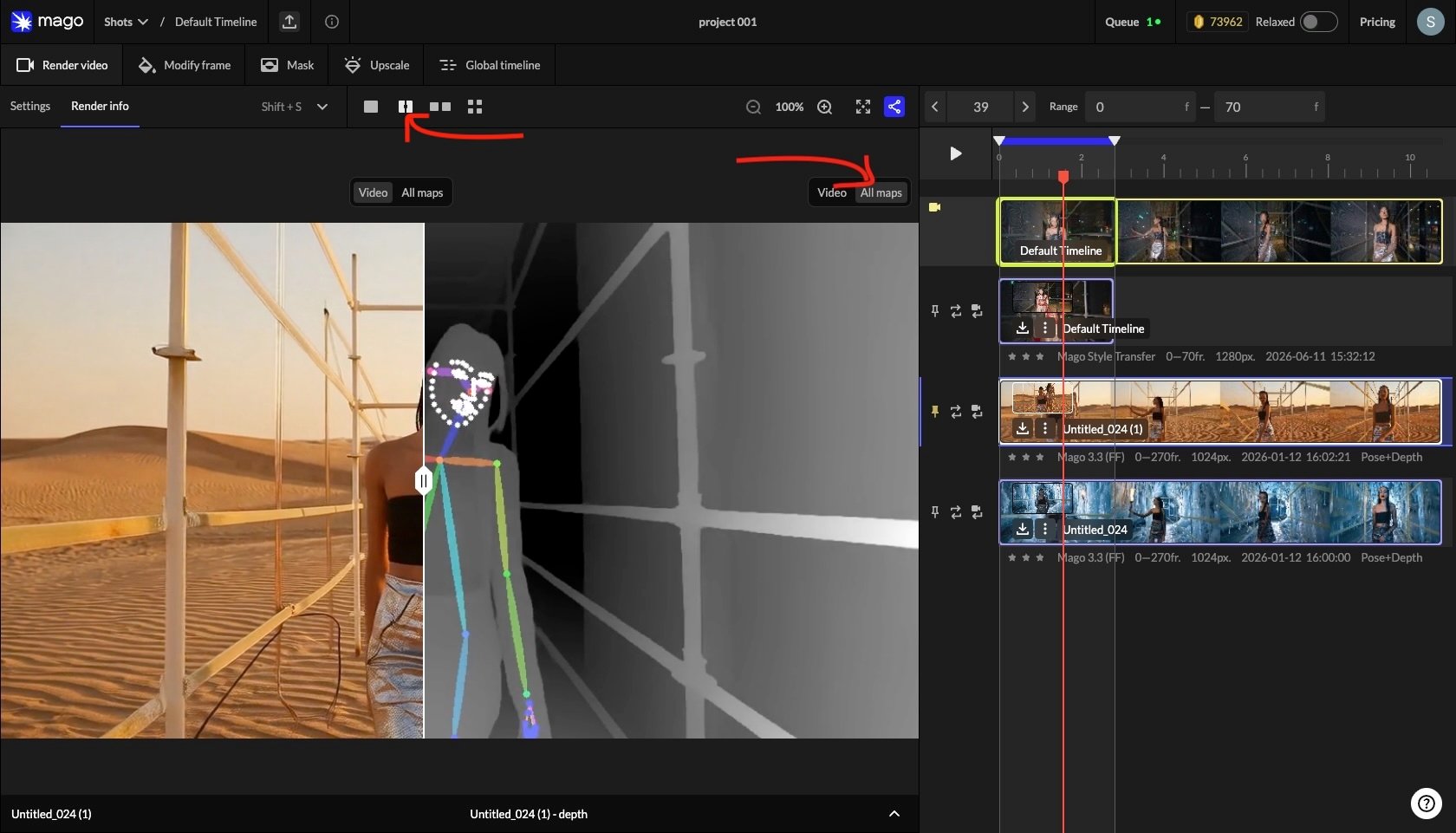
The source track can be compared against any render — use this to verify how much the render changed.
Settings difference display
A chevron at the bottom-right of any comparison view expands a panel showing the differences in settings between the compared renders. Useful for understanding why two outputs look different: was it the prompt, the seed, the steps, the ControlNet?ControlNet visualization
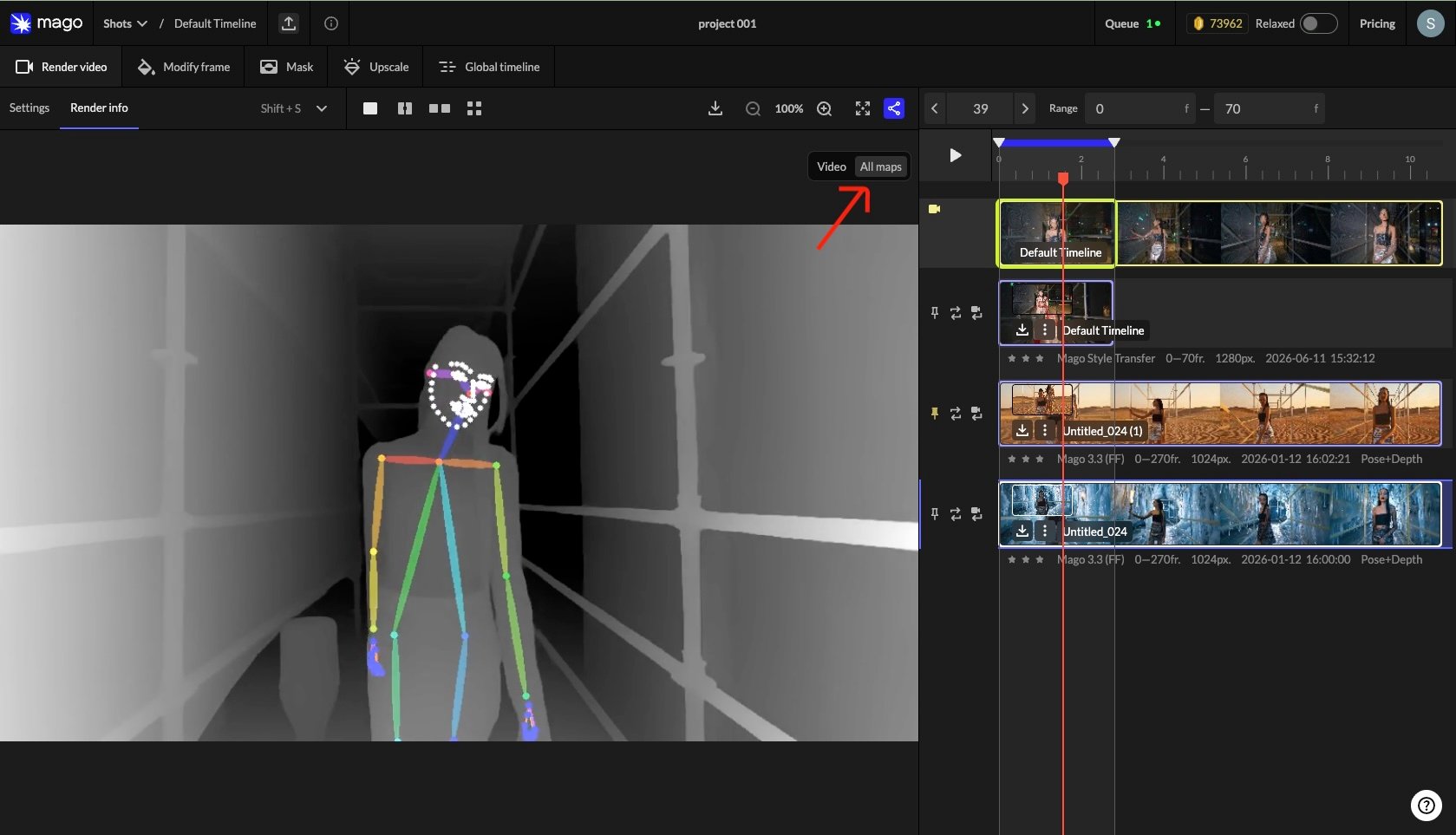
For models with ControlNets, the viewport can overlay the active ControlNet map (depth, softedge, pose, depth+pose) alongside the render. Activated from the top-right of the comparison view.📐 Design principle — Mago exposes flaws rather than hiding them. Deep zoom, ControlNet visualization, and frame-level inspection are intentional. They help you understand what the model is doing and why, which leads to better refinement.This is one of Mago’s signature debugging features. Common diagnoses from the ControlNet map:
- Pose tracking failing because the source has occlusion.
- Depth ambiguity in low-contrast scenes producing flat output.
- SoftEdge picking up too much texture detail, over-constraining the model.
Viewport tools
Settings Panel & Render Info
The left panel has two tabs: Settings (for the next render) and Render Info (for inspecting an existing track).Settings tab
Holds the parameters for the next render in the active workspace. The active workspace and chosen model determine what controls appear. Shared elements across most workspaces:- Source video selector (Render Video, Mask, Upscale) or source frame selector (Modify Frame).
- Preset selector.
- Model selector.
- Basic, Advanced, and sometimes ControlNets sub-tabs.
- Copy and Paste buttons to transfer settings between tracks, shots, or projects.
- Generate buttons (with credit cost) at the bottom.
Render Info tab
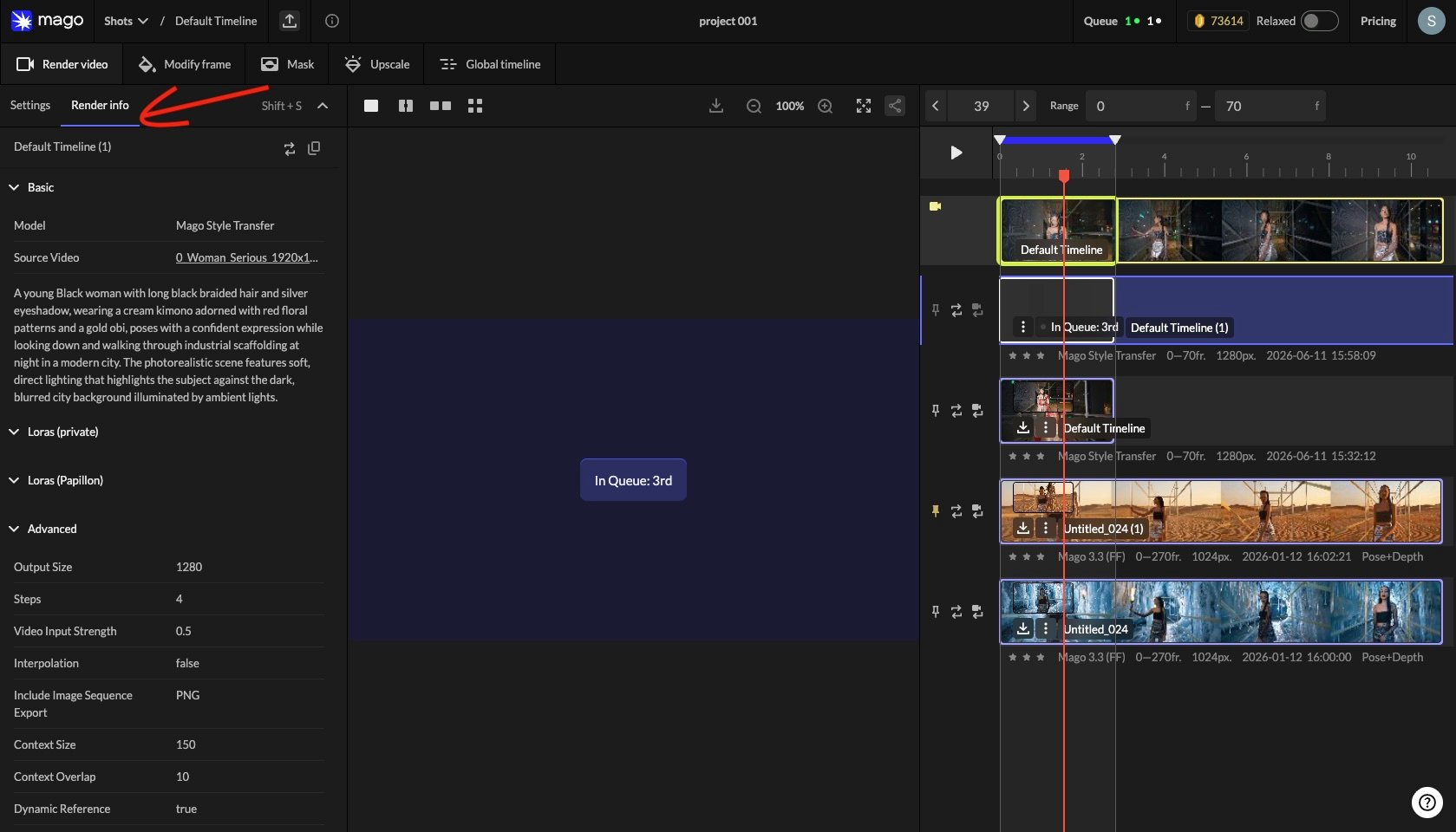
- Prompt used.
- All settings applied during the render.
- Source video reference.
- Reference frames or images used.
- Model and version.
Copy & paste settings
Settings transfer between tracks, shots, and even projects. Three places to do it:- Reuse Settings button on the track — loads settings into the panel for editing.
- Render Info → Copy Settings — copies the full settings package.
- Settings panel Copy/Paste — transfer within or across shots.
Panel toggle
Shift + S toggles panel visibility (also via the chevron at the panel edge). Useful when you want a larger viewport.← Timeline & tracks · User Guide · Next: Prompting guide →