

Application Layout
← Getting Started · User Guide · Next: Projects, Shots & Renders →The Mago editor is a single-page application organized into five persistent surfaces. Knowing where each lives makes the rest of the documentation easier to navigate.
Top bar
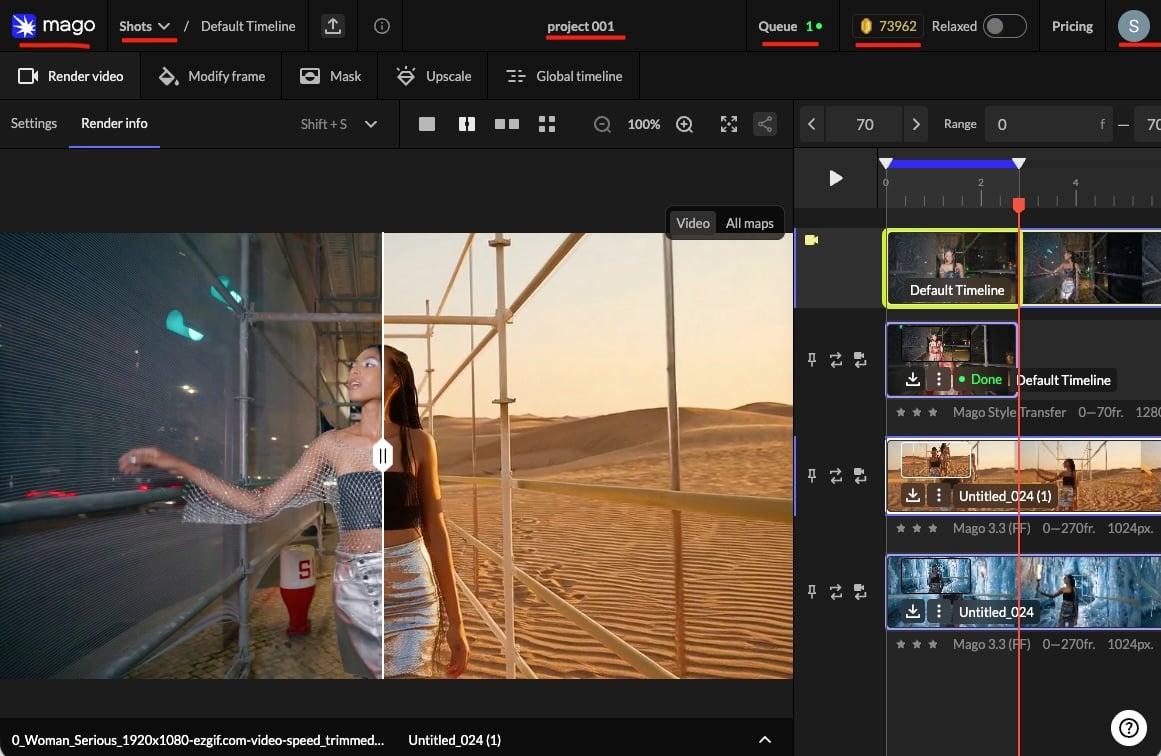
- Mago logo — returns to the home view from anywhere.
- Project name — the current project. Click to navigate.
- Shot name — the current shot. Click for the shot list; the ℹ️ icon opens shot statistics.
- Credit balance — real-time available credits. Updates after each render.
- Relaxed toggle — switches between Credits mode and Relaxed mode. Greyed out on the Free plan.
- Pricing — opens the plans and credit packs page.
- Queue — counter of in-progress and waiting jobs. Click to expand the full queue.
- Account avatar — account menu (settings, billing, support).
Workspace tabs
The five tabs determine the task being performed. Settings, viewport content, and timeline behavior all change with the active tab.
📸 Screenshot needed: app-layout/workspace-tabs.png
The five workspace tabs.
💡 Tip — Switching workspaces never loses work. Settings configured in one workspace are preserved when you return, and renders remain visible as tracks. Use Edit this Render on a track to carry a render into another workspace as the new source.The left panel and viewport are detailed in Timeline & tracks and Viewport & comparison.
← Getting Started · User Guide · Next: Projects, Shots & Renders →